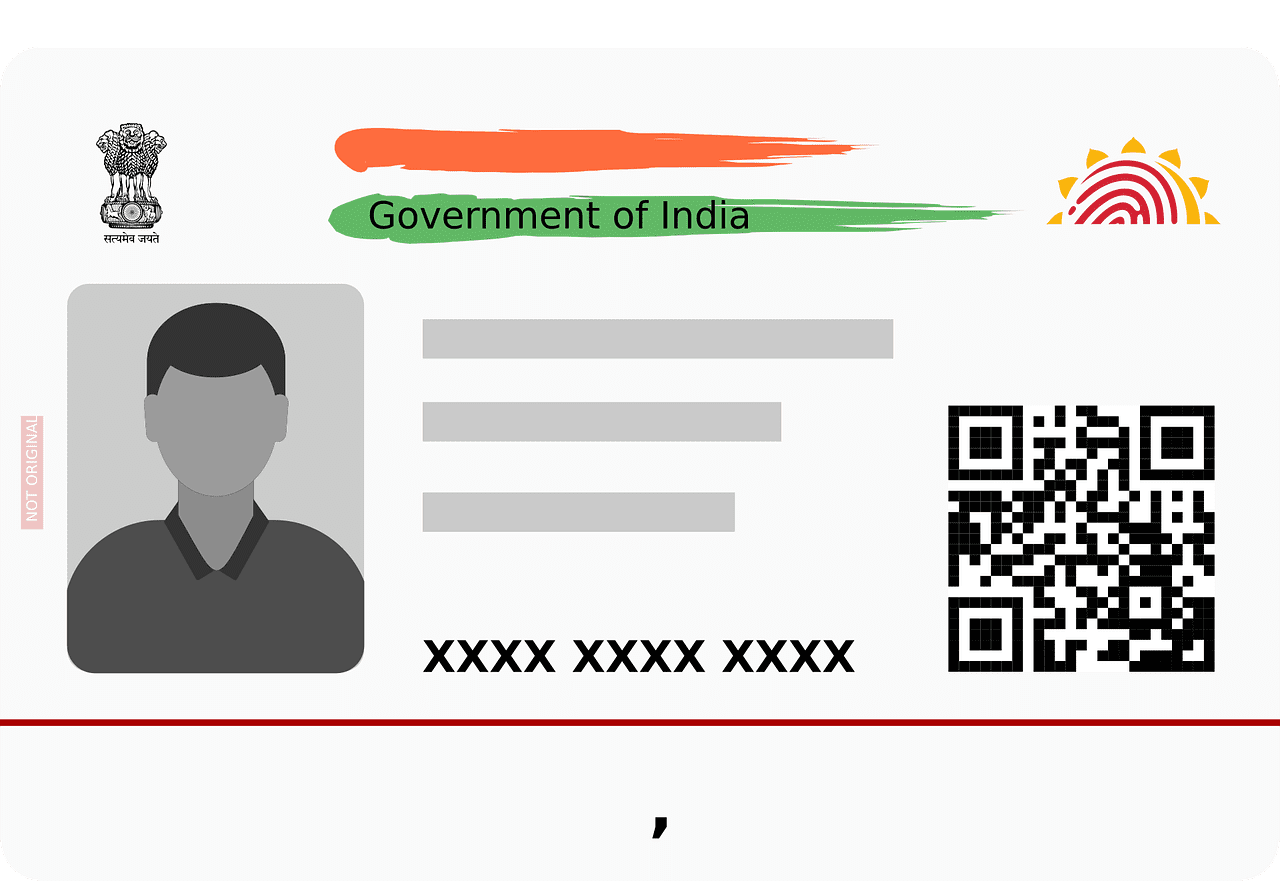
A few months ago, a relative called me in a panic. She had lost her Aadhaar card somewhere during travel and had no idea what to do next. Her first instinct was to get a duplicate printed. That’s it. That was her entire plan.
I had to stop her and explain that losing a physical Aadhaar card is not like losing a bus pass. The card contains information that can be used as part of identity verification, and Aadhaar is also used for different forms of authentication. The physical card by itself does not give someone access to your bank account, but if your Aadhaar-linked identity or authentication methods are misused, there can be real consequences. That is why I would treat a lost Aadhaar as a security issue, not simply a document-replacement problem.
So before you do anything else, before you order a reprint, before you file a police complaint, there are a few steps that will actually protect you. This guide walks through the practical steps I would take, in plain language.
Why a Lost Aadhaar is More Serious Than It Looks
Most people assume that without the physical card, nothing bad can happen. That assumption is wrong, and understanding why changes how urgently you act.
Your Aadhaar can be used for Aadhaar Enabled Payment System (AePS) transactions. AePS is a bank-led payment system that supports services such as cash withdrawal through an authorised Business Correspondent using Aadhaar or Virtual ID and biometric authentication. That is why biometric protection matters if you use Aadhaar-based authentication. A lost physical card does not, by itself, give someone the ability to withdraw money from your account.
UIDAI provides a biometric lock that prevents Aadhaar authentication using fingerprint, iris and face while the lock is enabled. If you are concerned about biometric misuse, this is one of the most useful controls to turn on. It is not a replacement for monitoring your bank account or reporting an actual fraudulent transaction, but it can prevent biometric-based Aadhaar authentication while it is locked.
Step 1: Check Your Authentication History First
Before changing anything, it is useful to check whether your Aadhaar has already been used without your knowledge. UIDAI’s Authentication History service lets you view authentication records from the last 6 months. The records include the authentication modality, date and time, requesting entity, transaction ID, response and error information.
Use the Aadhaar App or the official UIDAI website to access Authentication History. UIDAI says the service lets you view authentication records from the last six months. You will need your registered mobile number for authentication. Each entry shows information such as the date and time, authentication modality, requesting entity, transaction ID, response and error information. You may see authentication records related to services you have used, so review anything you do not recognise rather than assuming every entry is fraudulent. What you are looking for is anything you do not recognise.
If you find an unfamiliar entry, note down the transaction ID, date and other details shown in the record. Keep these details if you need to contact the relevant service provider or UIDAI. An Aadhaar authentication record does not necessarily mean that a particular account was accessed; review the authentication modality and requesting entity before deciding what happened.
Step 2: Lock Your Biometrics, Do This Immediately
If you are concerned about biometric misuse, this is one of the important controls UIDAI provides for protecting biometric authentication.
Biometric lock prevents Aadhaar authentication using your fingerprint, iris or face while the lock is enabled. UIDAI says a biometric authentication attempt made while the biometrics are locked will fail. This is specifically a control for biometric authentication; it does not mean that every other type of Aadhaar-related activity is blocked.
Here is exactly how to do it:
On the UIDAI website:
- Go to myaadhaar.uidai.gov.in
- Log in with your Aadhaar number and OTP (sent to your registered mobile)
- Go to Lock/Unlock Biometrics in the dashboard
- Click Enable Biometric Lock
- Confirm with OTP, done
On the Aadhaar App:
- Download the official Aadhaar App from the Play Store or App Store
- Log in and scroll down to the Biometric Lock option
- Request OTP, enter it, and confirm
When you genuinely need biometric authentication, you can temporarily unlock your biometrics through the available UIDAI service and then lock them again when you are finished. You are not permanently giving up biometric authentication, you are just making sure nobody can use it without your active permission.
One thing worth understanding: biometric lock and Aadhaar number lock are two different things. Biometric lock prevents biometric authentication using fingerprint, iris and face. Aadhaar number lock (UID lock) is broader: while it is enabled, UIDAI says authentication using the UID, UID Token and VID is blocked across biometric, demographic and OTP modalities. You need the latest VID to unlock the UID. Because this can interrupt Aadhaar authentication, it is better treated as a deliberate step when you have a specific reason to block authentication, rather than as an automatic response to every lost card.
Step 3: Generate a New Virtual ID (VID)
A Virtual ID (VID) is a 16-digit number that can be used instead of your Aadhaar number for authentication where the service supports VID. It is mapped to your Aadhaar but does not expose your actual 12-digit Aadhaar number to the entity receiving the VID.
Generating a new VID deactivates the previous VID after the applicable minimum validity period. That makes VID useful when you want to avoid repeatedly sharing your actual Aadhaar number, but it is not a replacement for every service that specifically requires an Aadhaar number.
How to generate a new VID:
- Go to myaadhaar.uidai.gov.in
- Click on Virtual ID (VID) Generator under Aadhaar Services
- Enter your Aadhaar number and OTP
- Select Generate New VID
- Your new 16-digit VID is shown, save it securely
You can also generate a VID via SMS by sending GVID <last 4 digits of Aadhaar> to 1947 from your registered mobile number.
Going forward, use your VID wherever possible instead of your actual Aadhaar number. Where a service supports VID, using it can reduce the need to share your actual Aadhaar number.
Step 4: Lock Your Aadhaar Number (UID Lock) if Misuse is Confirmed
If your authentication history showed suspicious entries, or if you have reason to believe your Aadhaar is being actively misused, go one step further and lock the Aadhaar number itself.
Important: you must generate your VID first (Step 3) before doing this, because once your Aadhaar number is locked, you will need the VID to unlock it or use any Aadhaar-linked service.
How to lock your Aadhaar number:
- Go to myaadhaar.uidai.gov.in and open the Aadhaar Lock/Unlock service
- Log in using your VID and OTP on your registered mobile
- Select Lock Aadhaar
- Confirm, your Aadhaar number is now locked for all authentication
Step 5: File a Complaint with UIDAI
If you notice suspicious Aadhaar activity, or you need help with an Aadhaar-related issue, contact UIDAI through its official grievance and support channels. A simple loss of the physical card does not by itself mean that you need to file a UIDAI complaint.
UIDAI provides these support channels:
- Call UIDAI helpline: 1947 (toll-free, available in multiple languages)
- Email: help@uidai.gov.in
- Online grievance form at uidai.gov.in under the Contact/Grievance section
Keep a note of your complaint reference number. When you file, mention your Aadhaar number, the approximate date of loss, and whether you noticed any suspicious activity in your authentication history.
Step 6: File a Police FIR
If you have confirmed misuse, for example, an unauthorised AePS withdrawal, an account opened in your name, or a SIM you do not recognise, report it promptly. For financial cyber fraud, you can report through the National Cybercrime Reporting Portal at cybercrime.gov.in or call 1930. For an unauthorised bank transaction, contact your bank’s fraud team immediately as well. If the card was stolen, or the circumstances warrant a police report, you can also report the theft to the police.
Keep the complaint or acknowledgement details. They can be useful when dealing with the bank, service provider or investigating authority. If any fraud happens with your lost aadhaar card, then you can show the FIR to police, this will protect you.
Step 7: Download e-Aadhaar or Order a Reprint
Only after completing the steps above should you worry about getting a replacement. There are two options:
e-Aadhaar (immediate, free): Download a digitally signed PDF of your Aadhaar from myaadhaar.uidai.gov.in. As per UIDAI circular, e-Aadhaar is legally equivalent to the physical card for all purposes including banking, travel, and government services. The PDF is password protected, your password is the first four letters of your name in uppercase followed by your birth year (example: MAYK1990).
Masked Aadhaar (recommended for sharing): When downloading, choose the masked Aadhaar option. This shows only the last 4 digits of your Aadhaar number on the document. Use this version when sharing with landlords, hotels, and other services that need identity proof but do not need your full number.
Physical reprint (₹75): You can order an Aadhaar PVC card through myAadhaar. UIDAI currently lists the charge as ₹75, including applicable GST and speed-post charges.
Step 8: Secure Your Linked Accounts
Your Aadhaar may be linked to different services or accounts. After a loss, review the ones that are relevant to you:
- Bank accounts: If you use Aadhaar-based banking services such as AePS, monitor your account for unauthorised transactions and contact your bank immediately if you see anything suspicious. Keep SMS and email transaction alerts enabled.
- Mobile SIM: If you suspect a mobile number has been issued in your name without your knowledge, use the government’s Sanchar Saathi service to check the mobile connections associated with your identity and report any you do not recognise.
- DigiLocker: If you suspect that your DigiLocker account has also been compromised, secure that account separately. Losing an Aadhaar card does not by itself mean that your DigiLocker password has been exposed.
- UAN (EPF): If your Aadhaar is linked to your provident fund account, check for any unusual activity at the EPFO portal.
What Happens If You Do Not Have Your Registered Mobile Number
Most of the steps above need OTP verification on your registered mobile. If that number has changed, been lost, or is not active, you cannot complete these steps online. In that case:
- Visit your nearest Aadhaar Seva Kendra (ASK) or enrollment center. Bring any other government ID (PAN, Passport, Voter ID).
- You can update your mobile number in person using biometric verification at the centre. There is a nominal fee.
- Call UIDAI helpline 1947 and explain the situation. They can guide you on the nearest centre and what documents or information you may need.
This is important to sort out regardless of the lost card situation. A registered mobile number is required for many Aadhaar self-service features, so keeping it current is important if you want to use those services.
Going Forward: How to Share Aadhaar Safely
Once you have sorted the immediate situation, a few habits will reduce the risk of this happening again or causing damage if it does:
- Use masked Aadhaar for routine sharing. Hotels, landlords, and most private services do not need your full 12-digit Aadhaar number. Download the masked version and use that instead.
- Use VID instead of Aadhaar number. For services that accept VID, share the 16-digit VID rather than your actual Aadhaar number. If it ever gets exposed, you can invalidate it by generating a new one.
- Consider keeping biometric lock enabled when you do not need biometric authentication. If you need to use fingerprint, iris or face authentication later, you can temporarily unlock the biometrics and lock them again afterward.
- Do not share Aadhaar on social media or public platforms. UIDAI explicitly advises against this. A photo of your Aadhaar card posted online can expose your number, name, address, and date of birth simultaneously.
- Check authentication history every few months. Use the Aadhaar App or the official UIDAI website to review your Authentication History periodically. If something looks wrong, you can investigate it early.
- Do not rely on a photograph of your Aadhaar as your main backup. Use the official Aadhaar App or e-Aadhaar when you need a digital copy, and avoid storing or sharing an unprotected image of the document unnecessarily.
My relative eventually got through all of this. It took about 45 minutes to lock the biometrics, generate a new VID, file the UIDAI complaint, and download her e-Aadhaar. No fraud had occurred, her authentication history was clean. But had she just ordered a reprint and done nothing else, her biometrics would have remained exposed and she would not have known if something happened until it was too late.