Want to stay safe online? Here are 10 simple steps you can take to protect your accounts, devices, and personal information from common cyber threats.
10 Easy Steps to Protect Yourself from Cyber Attacks
1. Use Strong and Unique Passwords
Use a different password for each important account. Longer passwords are generally harder to guess, and a password manager can help you create and store unique passwords. Avoid common passwords and passwords based on personal information.
Example: If you use the same password for your email and shopping account, a stolen password from one service could put the other account at risk. Using separate passwords limits that risk.
Examples of Weak and Stronger Passwords
Do not copy passwords from examples on the internet. Instead, use a password manager to create a unique password for each account.
| Example | Why It is Weak |
|---|---|
123456 | Very common and easy to guess. |
password123 | Uses a common word with predictable numbers. |
welcome2026 | Uses a common word and a predictable year. |
john@123 | Uses a name and a predictable pattern. |
Example of a stronger passphrase: river-lantern-coffee-mountain (example only, do not use this exact password). A longer passphrase can be easier to remember while still making guessing more difficult. The most important thing is to use a unique password for each account.
Examples of Stronger Passwords
| Example | Why It is Better |
|---|---|
River!7-Coffee#9 | Long, unique, and uses a mix of uppercase letters, lowercase letters, numbers, and special characters. |
Silver@42-Train!7 | Long and less predictable, with a mix of character types and unrelated words. |
Cactus#91-Ocean$7 | Long, unique, and does not use obvious personal information. |
These are examples only. Do not use these exact passwords for your accounts. Length and uniqueness are more important than simply adding special characters or numbers.
Tip: A password manager can generate and store unique passwords, so you do not have to remember them all.
2. Enable Two-Factor Authentication (2FA)
Turn on 2FA so your account requires a second verification step in addition to your password. This can be a code sent to your phone or generated by an authenticator app.
Quick Reference Table for 2FA Methods
Two-factor authentication can help protect your account even if someone gets your password. Here are some common 2FA methods:
| Method | Description | Example |
|---|---|---|
| SMS/Text Message | A one-time code is sent to your phone via text message. | 123456 |
| Authenticator App | An app generates a time-based, one-time password. | Google Authenticator, Microsoft Authenticator |
| A verification link is sent to your registered email address. | Click the link to confirm your identity |
3. Keep Your Software Up to Date
Always update your operating system, web browsers, and other software programs. Updates often include security patches that protect you from known vulnerabilities.
4. Be Cautious with Email Attachments and Links
Be careful with unexpected email attachments and links, especially from people or organizations you do not recognize. Avoid opening them unless you are sure they are safe. If an email comes from someone you know but seems suspicious, verify with them first.
5. Use Reputable Security Software
Install trustworthy antivirus and anti-malware software to protect your devices. These tools can detect and remove harmful programs from your device.
6. Be Cautious with Public Wi-Fi
Avoid accessing sensitive information over public Wi-Fi networks. Use a Virtual Private Network (VPN) to encrypt your data and protect your online activity when on public networks. If you want to know what the risks are of using public Wi-Fi, then read this.
7. Regularly Back Up Your Data
Back up your important files regularly to secure storage options like external drives or cloud services. This ensures you can restore your data in case of a cyber attack.
8. Be Mindful of Social Engineering Techniques
Stay cautious of any attempts to manipulate you into revealing personal information, passwords, or financial details. Always question unsolicited requests, especially those that sound urgent or too good to be true.
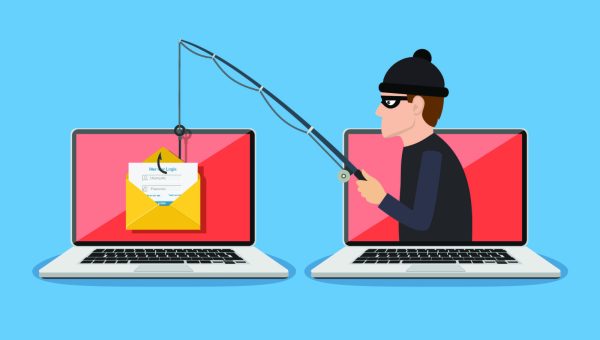
9. Educate Yourself About Phishing Scams
Phishing attacks aim to trick you into giving away your personal information or login credentials. Learn to recognize common phishing signs such as misspelled words, unfamiliar email addresses, or unexpected requests for personal details.
10. Stay Informed and Vigilant
Cyber threats change over time, so it helps to keep learning about common scams and new ways attackers try to trick people. Take a moment to check unexpected messages, links, and requests before acting on them.
What to Do If You Clicked a Suspicious Link
If you clicked a suspicious link, do not panic. What you should do next depends on what happened after you clicked it.
- If you only opened the page: Close it and do not enter your password, payment details, or other personal information.
- If you entered a password: Change that password immediately from a trusted website or device. If you used the same password elsewhere, change it there too.
- If you downloaded a file: Do not open it. Run a security scan with your security software and remove anything it identifies as malicious.
- If you shared bank or card details: Contact your bank or card provider as soon as possible and follow their instructions.
- If an account may have been compromised: Turn on multi-factor authentication and review recent account activity for anything you do not recognize.
The FTC’s phishing guidance also recommends contacting a company through a phone number or website you already know is genuine instead of using information provided in a suspicious message.
A Few Simple Habits Can Make a Big Difference
You do not need to be a cybersecurity expert to improve your online security. Start with the basics: use unique passwords, turn on MFA, keep your devices updated, back up important files, and think twice before clicking unexpected links or sharing sensitive information.
For password advice, see NIST’s guidance on creating a good password. For account protection, NIST’s MFA guidance explains why using more than a password can make it harder for an attacker to access an account.
Quick Cybersecurity Checklist
- Use a different password for each important account.
- Use a password manager where practical.
- Turn on MFA for important accounts.
- Install software and security updates.
- Back up important files regularly.
- Be careful with unexpected links and attachments.
- Avoid entering sensitive information on suspicious websites.
- Know what to do if you think an account has been compromised.
For more practical guidance, you can also read our complete guide to phishing attacks and learn how attackers use fake messages and websites to trick people.